

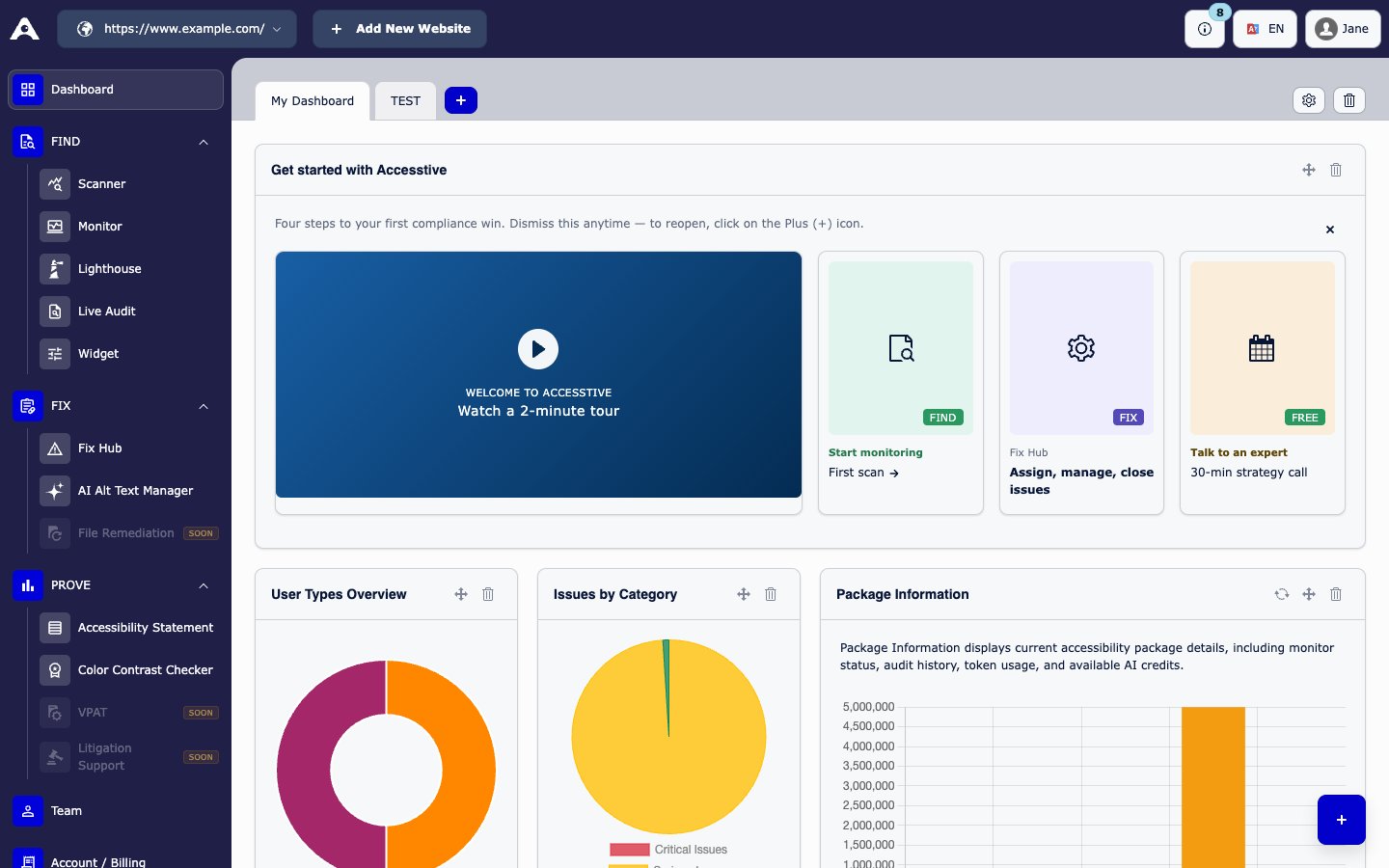
The Accesstive dashboard
The left menu
The menu follows three steps: find problems, fix them, and prove your work.
Items marked SOON in the menu (File Remediation, VPAT, and Litigation Support) are not available yet.
Some modules, such as Scanner, Monitor, Lighthouse, Live Audit, and AI Alt Text Manager, show a page tree next to the menu. Click your website or one of its pages in the tree to choose what you want to work on.
The Dashboard home page
After you sign in, you see the Dashboard. It shows small panels (widgets) with an overview of your website, such as:- The Get started with Accesstive onboarding strip
- Your site score and issues over time
- Issues by severity and by category
- Lighthouse overview
- Your plan details
- A link to book a demo
Onboarding strip
When you first sign in, the Get started with Accesstive strip shows four steps to your first result:- Welcome to Accesstive: watch a 2-minute tour.
- First scan: click Start monitoring to open the Scanner and check your site.
- Fix Hub: assign, manage, and close issues.
- Talk to an expert: book a free 30-minute strategy call.
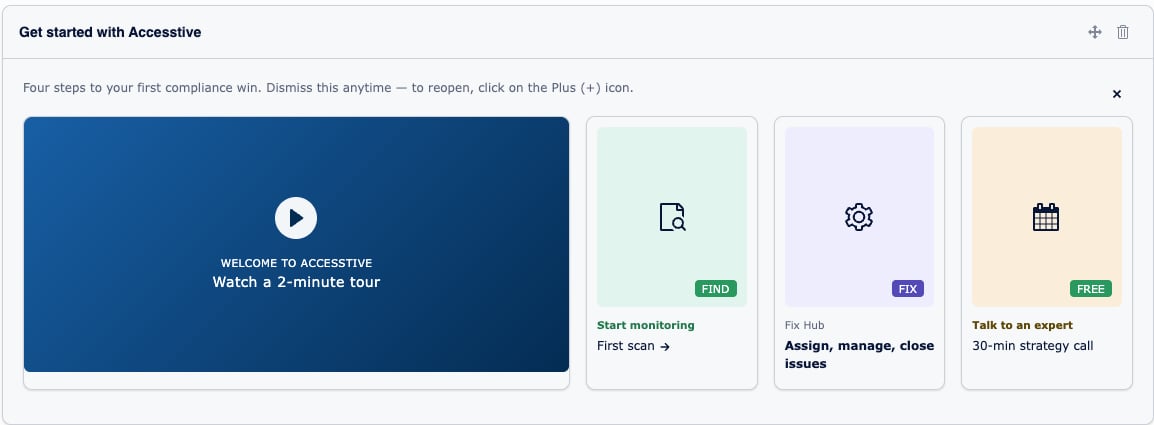
The onboarding strip
Top toolbar
At the top of the dashboard you can:- Switch between your websites (Domains) or add a new website
- Change the dashboard language (English or German)
- Open your notifications
- Open Documentation and the interactive tours
- Open your profile menu. It shows your Profile information and links to User Settings and Logout. See Profile and account.