

Open Fix Hub
- Go to FIX → Fix Hub.
- Choose how to see your issues:
- Table view: a list you can sort and filter
- Board view: cards in three columns: New, In Progress, and Completed
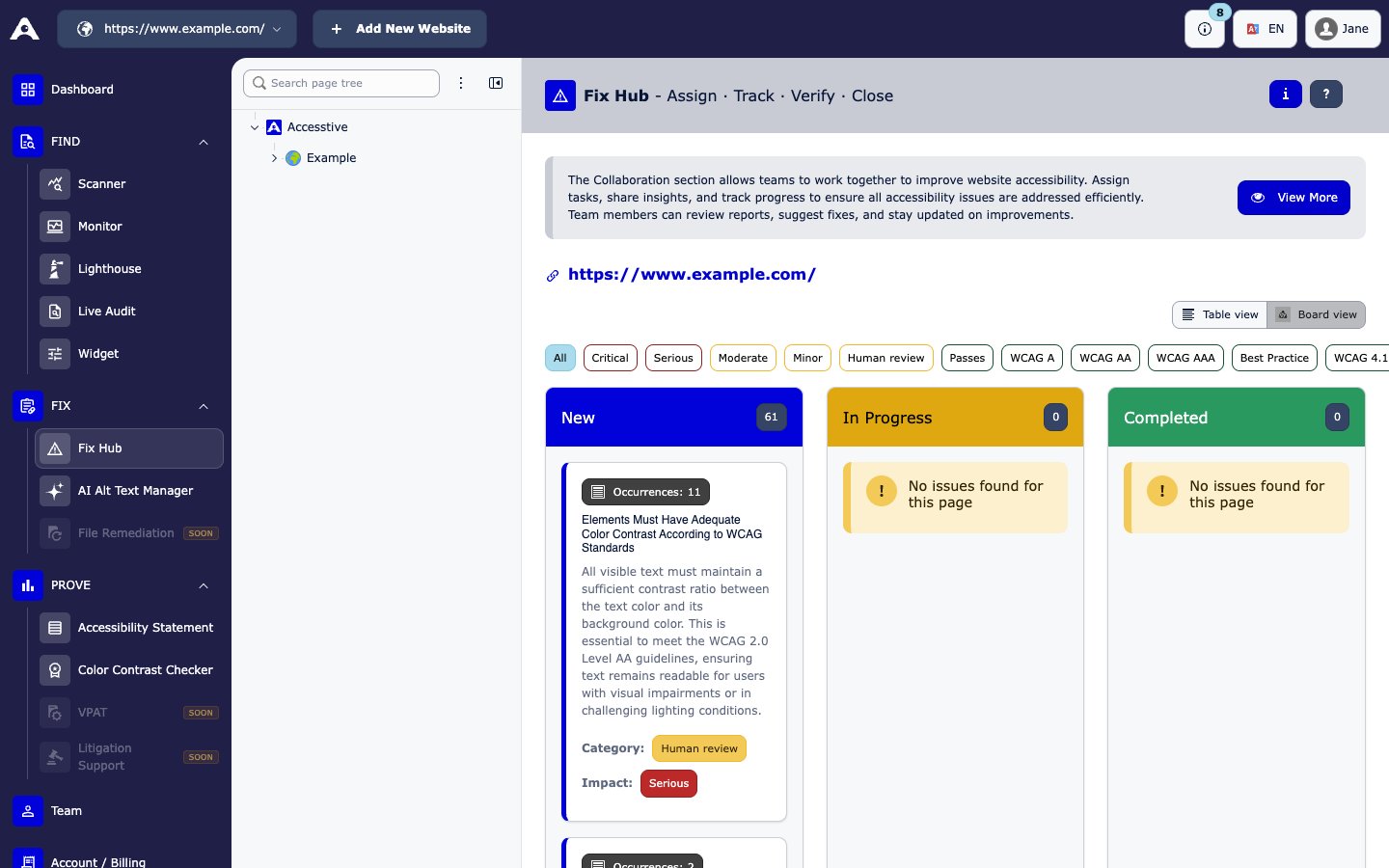
Fix Hub in Board view
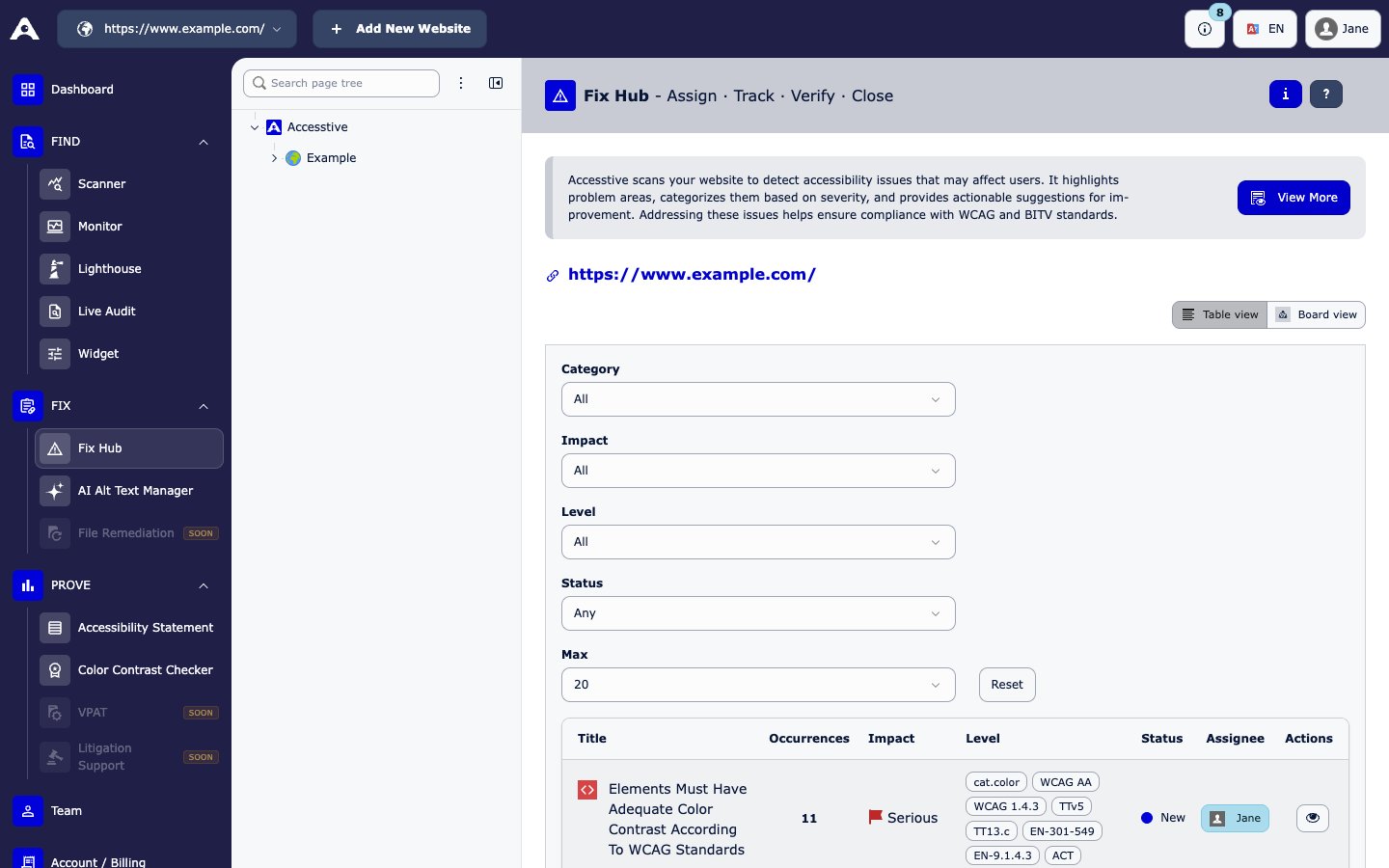
Fix Hub in Table view
Find the right issues
Use the filters to narrow the list:- Category: Errors, Needs Review, or Passes
- Impact: Critical, Serious, Moderate, Minor, Human review, or Passed
- WCAG level: A, AA, AAA, or Best Practice
- Assignee and Status
Open an issue
Click an issue to open its details. You see:- Description, Why It Matters, and How to Fix
- Disabilities Affected
- Guidelines (the WCAG rule) and a Helpful URL
- Affected Code, the Target element, and a Screenshot
- Occurrences: how often the issue appears
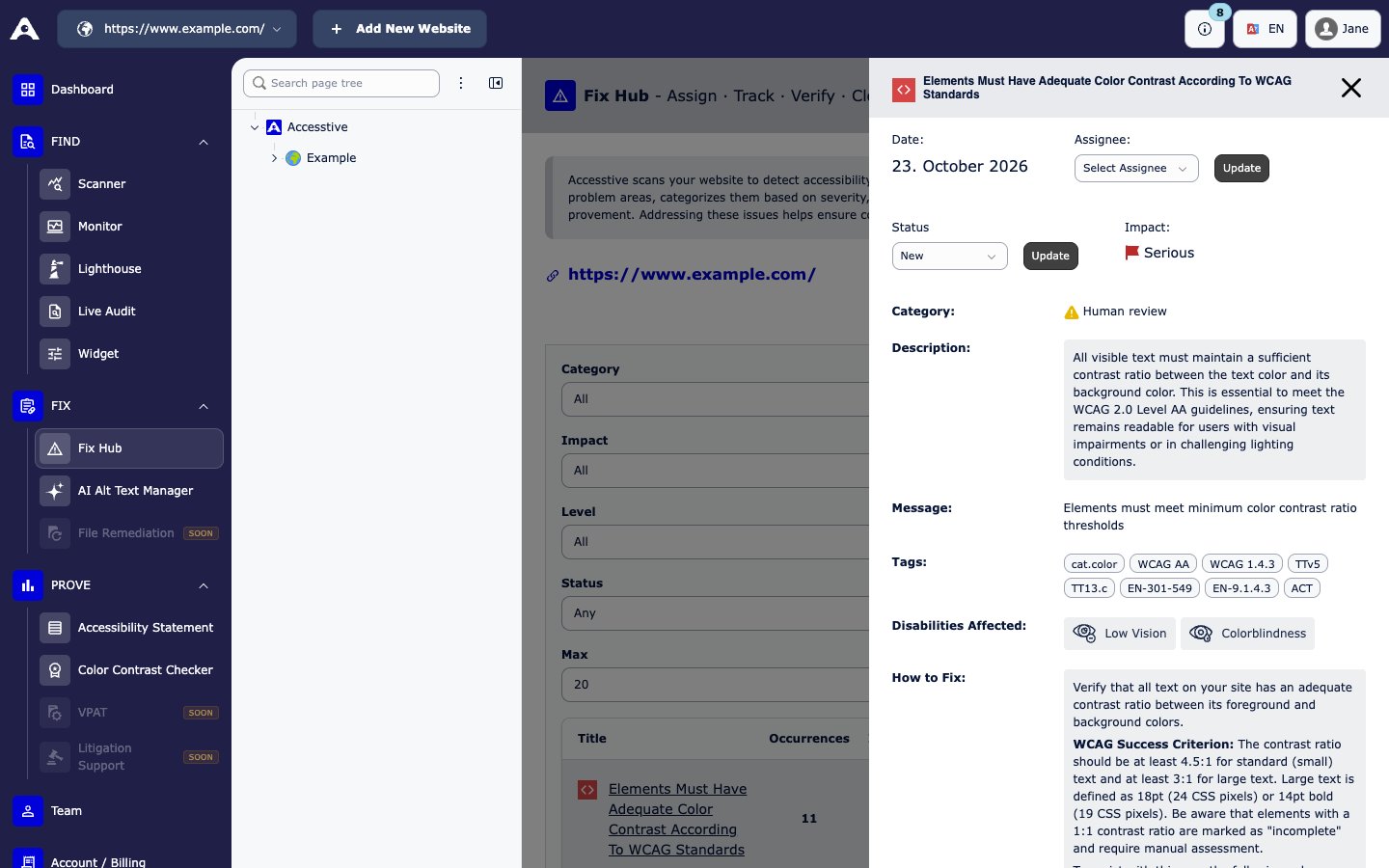
Issue details
Assign and track work
1
Assign the issue
In the issue details, use Select Assignee to pick a teammate. Add teammates first in Team.
2
Set the status
Set Status to New, In-Progress, or Complete, then click Update. In Board view you can also drag a card to another column.
Fix with AI
1
Ask the AI
In the issue details, click Fix with AI. Accesstive creates an AI-Generated Solution with an Explanation and AI-Generated Code.
2
Check the answer
Read the suggestion carefully. If it does not fit, click Regenerate with AI.
3
Apply the fix yourself
Copy the code and apply it in your own website. Accesstive never changes your website code by itself.
Verify and close
After your developer deploys a fix:- Run Run Accessibility Check again in FIND → Scanner, or wait for the next Monitor check.
- If the issue no longer appears, set it to Complete.
Related
- Scanner and Monitor to find new issues
- Live Audit to see an issue on the live page
- Team to add people you can assign
- Product page: Fix Hub