

Run a Live Audit in the dashboard
1
Open Live Audit
Go to FIND → Live Audit.
2
Choose a page
In the page tree, click the page you want to check. Your page opens inside the dashboard with the Accesstive audit panel next to it.
3
Review the issues
Click an issue in the panel to highlight the element on the page and read the fix suggestion. Use Full Screen for more space, and Exit Full Screen to go back.
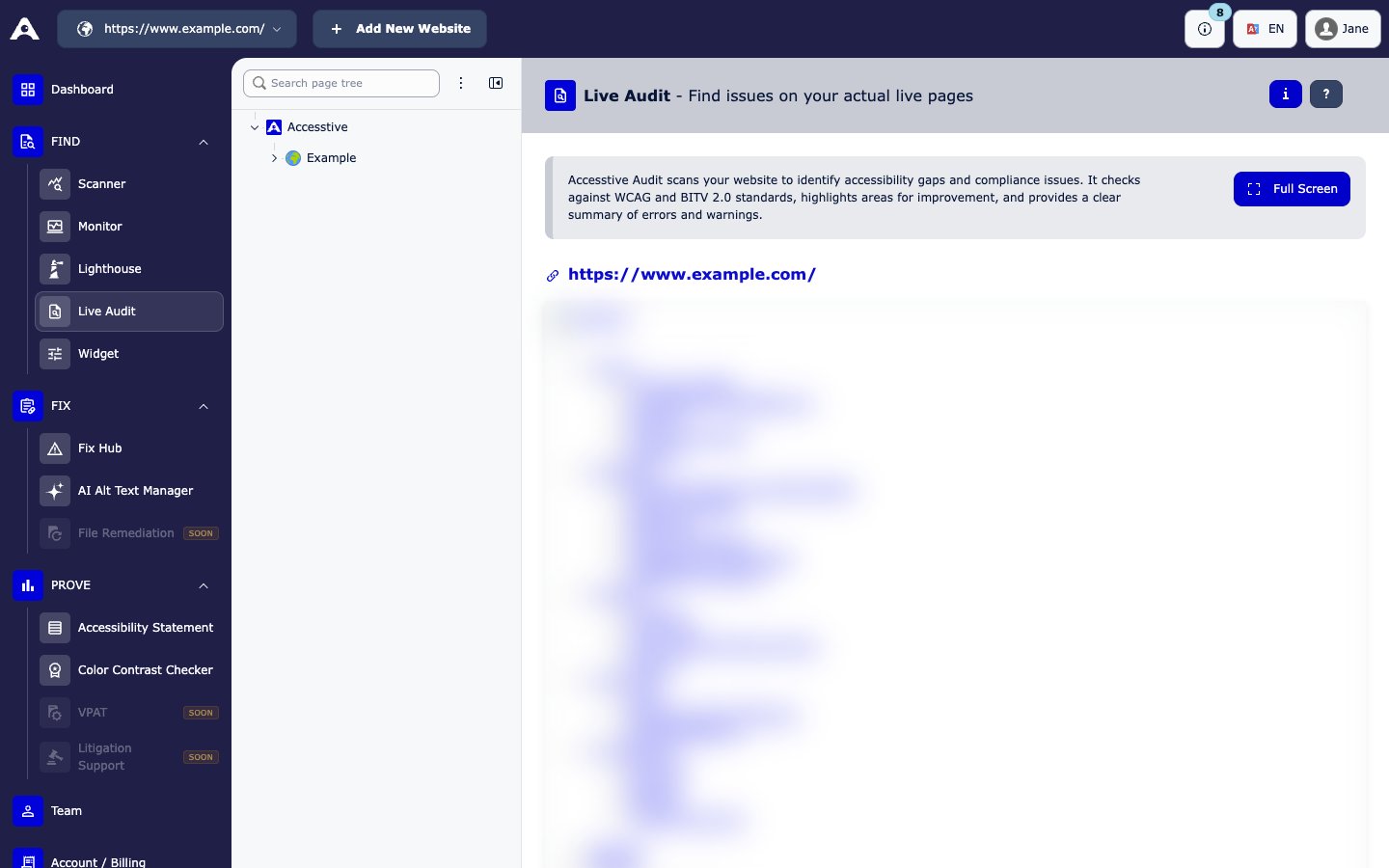
FIND → Live Audit (page preview blurred for privacy)
On the Solo plan, Live Audit works on your website’s home page only (the top entry in the page tree). To audit other pages, choose Upgrade Plan.
Run a free Live Audit without an account
- Open the free Live Audit page.
- Enter the address of a public page.
- Review the results on your page.
What you see for each issue
- The exact element on the page
- Severity: Critical, Serious, Moderate, or Minor, plus checks that Passed and Best Practice tips
- The WCAG rule that applies
- Which users are affected
- The related source code
- An AI suggestion for the fix
Live Audit, Scanner, and Monitor: what is the difference?
See Scanner and Monitor.
When Live Audit cannot run
Good to know
Run Live Audit again after you deploy code or change content, because any change can add new issues.Related
- Fix Hub to assign and close issues
- Scanner and Monitor for repeated checks
- Product page: Live Audit